Bulk Operations
When managing dozens or hundreds of cameras, individual configuration becomes impractical. This guide covers bulk operations for enterprise-scale deployments.
Bulk Operations Overview
Available Bulk Actions
| Operation | Scope | Description |
|---|---|---|
| Add Cameras | Group | Add multiple cameras to a group at once |
| Remove Cameras | Group | Remove cameras from group |
| Enable/Disable | Profile | Toggle profiles across all cameras |
| Apply Skill | Group | Add skill to all cameras in group |
| Update Settings | Group | Change configuration across cameras |
Operation Hierarchy
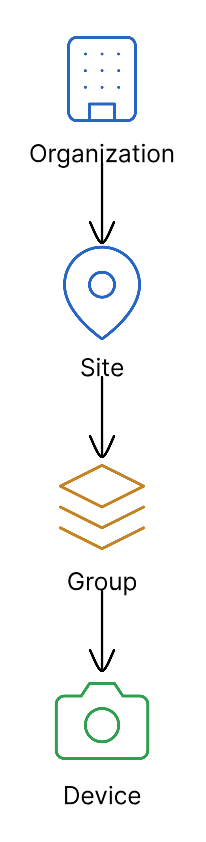
Adding Multiple Cameras
Via Group Configuration
- Navigate to Groups → Select group
- Click Cameras tab
- Click Add Cameras
- Select cameras from available list
- Click Add Selected
Camera Selection
Available cameras are those:
- Connected to Anava cloud
- Not assigned to another group with conflicting profiles
- Online and communicating
Bulk Selection Tips
| Selection | How |
|---|---|
| Select all | Click header checkbox |
| Select range | Click first, Shift+click last |
| Select multiple | Ctrl/Cmd + click each |
| Filter first | Use search to narrow list |
Managing Profiles at Scale
Enabling/Disabling Profiles
To change profile state across all cameras:
- Go to Profiles in group
- Click profile row
- Toggle Active switch
- Confirm change
All cameras in the group receive the update.
Scheduling Profile Changes
Instead of manually enabling/disabling:
- Use Schedule in profile configuration
- Set active hours
- Profiles auto-enable/disable
Profile: After Hours Security
Schedule:
  - Days: Mon-Fri
    Hours: 18:00-07:00
  - Days: Sat-Sun
    Hours: 00:00-23:59
Bulk Skill Management
Adding Skills to Group
When you add a skill to a group:
- Available to all cameras in group
- Can be linked via profiles
- Configuration shared across devices
Cloning Skills
To reuse a skill in another group:
- Open source skill
- Click Clone
- Select target group
- Modify if needed
- Save
Skill Templates
For common patterns, create template groups:
Template Group: "Security Template"
Skills:
  - Intrusion Detection (standard config)
  - Entrance Security (standard config)
  - Loitering Alert (standard config)

Process:
1. Clone template group
2. Rename to production group
3. Add cameras
4. Customize as needed
Configuration Propagation
How Changes Propagate
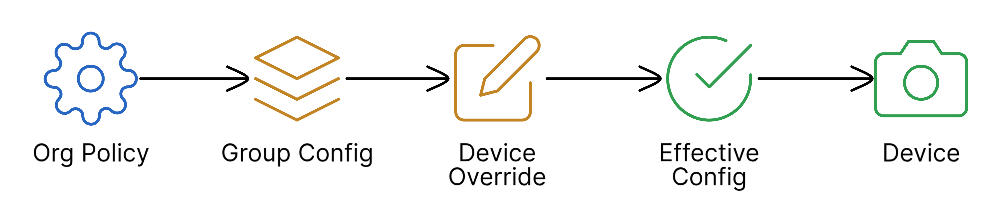
Propagation Timing
| Change Type | Propagation Time |
|---|---|
| Profile enable/disable | < 5 seconds |
| Skill update | < 10 seconds |
| Add camera to group | < 30 seconds |
| Configuration update | < 10 seconds |
Monitoring Propagation
Check Devices view for:
- Online: Camera connected, config current
- Pending: Configuration update in progress
- Offline: Camera not connected
Batch Configuration Updates
Updating Multiple Cameras
When you need to change settings across cameras:
- Group-level changes apply to all cameras automatically
- Selective changes use device overrides
Common Batch Updates
| Update | Method |
|---|---|
| Change trigger type | Update profile trigger config |
| Adjust confidence threshold | Update profile model settings |
| Modify TTS voice | Update profile TTS config |
| Change view area | Requires per-camera override |
Using Search and Filter
Before bulk operations:
-
Filter by status
- Online only
- Specific firmware version
- Error state
-
Search by name
- Location patterns
- Camera model
- Serial number prefix
Import/Export Operations
Exporting Configuration
Export group configuration for:
- Backup
- Replication to other sites
- Version control
# Export group configuration (via API)
GET /api/v1/groups/{groupId}/export

# Response includes:
# - Group metadata
# - All skills
# - All profiles
# - Device assignments
Importing Configuration
Import to create or update groups:
# Import group configuration
POST /api/v1/groups/import
Content-Type: application/json

{
  "group": { ... },
  "skills": [ ... ],
  "profiles": [ ... ],
  "options": {
    "overwrite": false,
    "assignDevices": false
  }
}
Configuration Templates
Create reusable templates:
- Site Template - Standard group structure
- Skill Library - Common detection patterns
- Profile Presets - Standard trigger configurations
Multi-Site Deployment
Replicating Across Sites
For consistent deployment across locations:
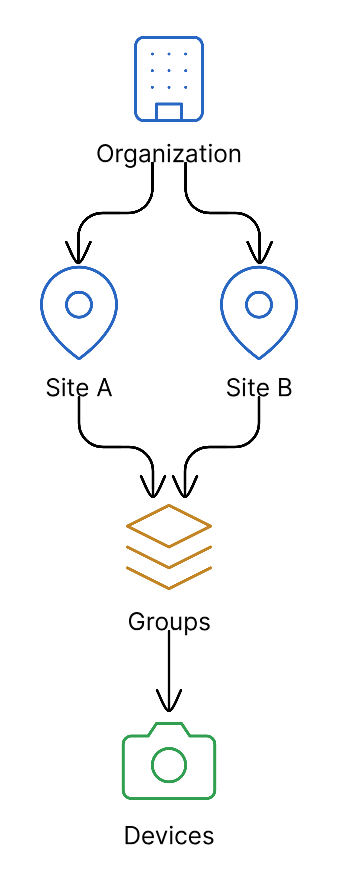
Site-Specific Customization
After cloning:
- Rename group for site
- Add site-specific cameras
- Adjust schedules for timezone
- Modify prompts for local context
Maintaining Consistency
Options for keeping sites in sync:
| Approach | Pros | Cons |
|---|---|---|
| Manual sync | Full control | Time-consuming |
| Template updates | Consistent base | Must re-clone |
| API automation | Scalable | Development required |
Performance Considerations
Large Group Operations
For groups with 50+ cameras:
-
Stagger updates
- Don't update all profiles simultaneously
- Allow propagation between changes
-
Monitor device status
- Watch for pending/offline devices
- Investigate before next batch
-
Time operations appropriately
- Avoid peak analysis times
- Consider maintenance windows
API Rate Limits
When using API for bulk operations:
| Operation | Rate Limit |
|---|---|
| Read operations | 100/minute |
| Write operations | 30/minute |
| Bulk imports | 5/minute |
Rollback Procedures
Reverting Changes
If a bulk operation causes issues:
-
Immediate revert
- Disable affected profiles
- Previous config remains on devices
-
Selective revert
- Identify affected cameras
- Apply overrides to restore behavior
-
Full rollback
- Import previous configuration backup
- Re-assign cameras
Configuration History
Configuration changes are logged:
- Who made change
- What changed
- When changed
- Previous value
Access via Group → History
Best Practices
Pre-Operation Checklist
Before bulk operations:
- Backup current configuration
- Verify target cameras are online
- Test on small subset first
- Schedule during low-activity period
- Notify relevant teams
Post-Operation Verification
After bulk operations:
- Check device status for all cameras
- Verify configuration propagated
- Test sample cameras manually
- Monitor for unexpected events
- Document changes made
Documentation
Maintain records of:
- Bulk operations performed
- Cameras affected
- Configuration changes
- Rollback procedures used
Troubleshooting
Cameras Not Receiving Updates
-
Check connectivity
- Device shows online?
- MQTT connected?
-
Check pending status
- Pending indicates update in transit
- May need retry
-
Force refresh
- Remove and re-add camera to group
- Triggers full configuration sync
Partial Updates
If some cameras updated but not others:
-
Identify affected devices
- Check device status for each
- Note error messages
-
Common causes
- Network interruption
- Device offline during update
- Configuration conflict
-
Resolution
- Wait for device reconnection
- Retry operation for affected devices
Related Topics
- Group Design - Structuring groups
- Device Overrides - Per-camera customization
- Installation Guide - Initial deployment