Upgrade Guide
This guide covers upgrading Anava components including the cloud platform, camera ACAP, and web installer.
Upgrade Overview
Components
Anava has three main components that may need updates:
| Component | Location | Update Method |
|---|---|---|
| Cloud Platform | Anava cloud | Automatic |
| ACAP | Each camera | Web installer or manual |
| Web Installer | Browser-based | Self-updating |
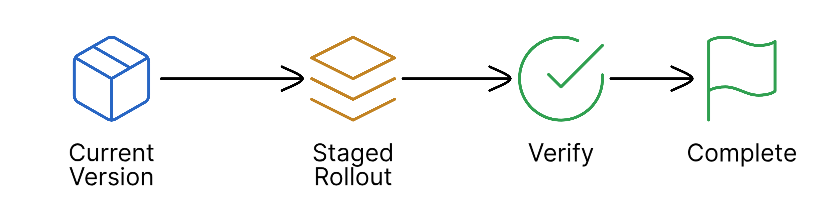
Upgrade Path
Checking Versions
Current Versions
Find current versions:
| Component | Where to Check |
|---|---|
| Cloud | Settings → About |
| ACAP | Camera web UI → Apps → AnavaAgent |
| Installer | Installer page header |
Available Versions
Check for updates:
- Release notes page: anava.ai/releases
- Console notification: Banner when update available
- Email notification: For critical updates
ACAP Updates
Via Web Installer
The recommended method for updating ACAPs:
- Navigate to web installer
- Select cameras to update
- Click Update Firmware/Apps
- Select new ACAP version
- Deploy
Bulk ACAP Update
For many cameras:

Manual ACAP Update
For individual cameras:
- Download ACAP from releases page
- Access camera web interface
- Go to Apps → Add app
- Upload
.eapfile - Enable app
ACAP Update Considerations
| Factor | Consideration |
|---|---|
| Downtime | ~30-60 seconds per camera during restart |
| Configuration | Settings are preserved |
| Batch size | Update 10-20 cameras at a time |
| Timing | Schedule during low-activity periods |
Cloud Platform Updates
Automatic Updates
The cloud platform updates automatically:
- No action required
- Zero downtime for most updates
- Notification of major changes
What Updates Include
| Update Type | Contents |
|---|---|
| Feature | New capabilities |
| Enhancement | Improved functionality |
| Security | Vulnerability patches |
| AI Model | Analysis improvements |
Update Timing
| Update Type | Notice | Timing |
|---|---|---|
| Security (critical) | None | Immediate |
| Security (standard) | 24 hours | Within week |
| Feature | 1 week | Scheduled |
| Major version | 2 weeks | Coordinated |
Pre-Update Checklist
Before Any Update
- Review release notes
- Check compatibility requirements
- Export current configuration
- Identify rollback procedure
- Schedule maintenance window
- Notify stakeholders
For ACAP Updates
- Verify camera connectivity
- Check disk space on cameras
- Test update on pilot camera first
- Plan batch groups
For Major Updates
- Review breaking changes
- Test in staging (if available)
- Prepare rollback plan
- Schedule extended window
- Arrange technical support
Update Procedures
ACAP Update Procedure
Step 1: Preparation
1. Identify cameras to update
2. Group by location/function
3. Create update schedule
4. Export current configuration
Step 2: Pilot Test
1. Select 1-2 pilot cameras
2. Apply update
3. Verify operation:
   - Camera connects to cloud
   - Triggers fire correctly
   - Detections occurring
   - No error logs
4. Wait 24 hours if possible
Step 3: Phased Rollout
Batch 1: 10% of cameras
├── Update
├── Verify
├── Wait 1 hour

Batch 2: 25% of cameras
├── Update
├── Verify
├── Wait 1 hour

Batch 3: Remaining cameras
├── Update
├── Verify
└── Complete
Step 4: Verification
For each camera:
✓ Online in console
✓ Profiles active
✓ Test detection works
✓ No error logs
Configuration Migration
When updates require configuration changes:
- Automatic migration: Most updates migrate automatically
- Manual migration: Rare, documented in release notes
- Migration failures: Logged, rollback available
Rollback Procedures
ACAP Rollback
If issues occur after ACAP update:
-
Via Web Installer
- Select affected cameras
- Choose previous ACAP version
- Deploy
-
Manual Rollback
- Download previous ACAP version
- Upload to camera manually
- Enable previous version
Configuration Rollback
If configuration is corrupted:
- Access configuration backup
- Import previous configuration
- Reassign cameras to groups
- Verify profiles active
Emergency Rollback
For critical issues:
-
Disable affected profiles
- Stops problematic detections immediately
- Cameras continue other functions
-
Contact support
- Priority response for production issues
- Remote assistance available
Update Scheduling
Recommended Windows
| Environment | Recommended Window |
|---|---|
| Critical 24/7 | 2-5 AM local time |
| Business hours | 6-8 AM or weekend |
| Development | Anytime |
Coordination
For multi-site deployments:
Update Schedule:
├── Site A: Monday 3 AM PST
├── Site B: Monday 6 AM EST
├── Site C: Tuesday 3 AM PST
└── Site D: Tuesday 6 AM EST
Freeze Periods
Consider avoiding updates during:
- Major events
- Holiday periods
- Critical business operations
- Other planned maintenance
Post-Update Verification
Immediate Checks
Within 1 hour of update:
| Check | How |
|---|---|
| Cameras online | Device status page |
| Profiles active | Profile list |
| Detections occurring | Sessions view |
| No errors | Log review |
24-Hour Checks
After 24 hours:
| Check | How |
|---|---|
| False positive rate | Compare to baseline |
| True positive rate | Review verified events |
| System performance | Dashboard metrics |
| User feedback | Check with operators |
Verification Checklist
Post-Update Verification:
□ All cameras showing online
□ ACAP versions match expected
□ Profiles correctly active/inactive
□ Test trigger produces detection
□ ONVIF events reaching VMS
□ TTS announcements working
□ Push notifications delivered
□ No unusual error logs
□ Performance within normal range
□ User access working
Version Compatibility
Compatibility Matrix
| ACAP Version | Cloud Version | Notes |
|---|---|---|
| 3.x | 2024.1+ | Current |
| 2.x | 2023.6-2024.2 | Maintenance mode |
| 1.x | 2023.1-2023.6 | End of life |
Breaking Changes
Breaking changes are documented with:
- Clear identification in release notes
- Migration guide
- Extended support timeline
- Rollback procedures
Troubleshooting Updates
Update Fails to Deploy
-
Check connectivity
- Camera reachable?
- Installer can access camera?
-
Check space
- Sufficient storage on camera?
-
Check compatibility
- Camera firmware supported?
- Previous ACAP version compatible?
Camera Offline After Update
-
Wait 2-3 minutes
- Update may still be completing
-
Check camera directly
- Access web interface
- Verify ACAP is running
-
Restart ACAP
- Stop and start AnavaAgent
-
Rollback if needed
- Deploy previous version
Configuration Lost After Update
-
Check cloud configuration
- Configuration stored in cloud
- Should sync on reconnect
-
Re-add camera to group
- Remove and re-add if needed
-
Restore from backup
- Import saved configuration
Related Topics
- Installation - Initial setup
- Backup & Recovery - Configuration backups
- Security Configuration - Security updates