Initial Setup
After installing Anava, this guide walks you through creating your first detection configuration. By the end, you'll have a working setup that analyzes camera events and can trigger alerts in your VMS.
Understanding Detections
Detections are the core concept in Anava. A detection defines:
- What triggers analysis - Motion, object detection, digital input, schedule, or manual trigger
- What to look for - People, vehicles, packages, fire, weapons, or custom objects
- What questions to answer - Count people, detect loitering, identify activities
- When to run - Always, after hours, office hours, weekdays, or weekends
- What actions to take - Alerts, voice announcements (talkdown), webhooks
Detection Architecture
Anava organizes detections using three components that work together:
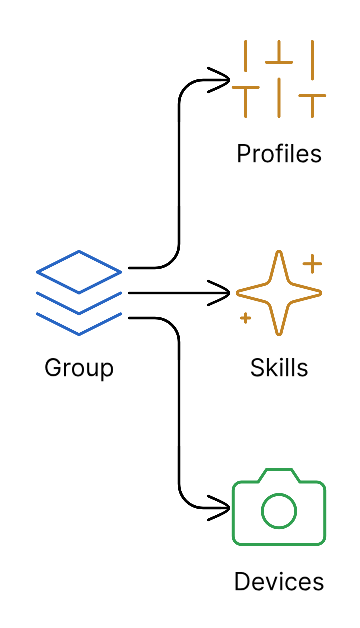
| Component | Purpose | Example |
|---|---|---|
| Group | Container that holds configurations and devices | "Warehouse North" |
| Skill | Defines what AI looks for and how it responds | "Weapon Detection" |
| Profile | Links triggers (motion, I/O) to skills with schedules | "Analyze on motion, weekdays 6pm-6am" |
Devices inherit all profiles and skills from their group. Change the group configuration once, and all cameras in that group are updated automatically.
Visualizing Your Detections
The Detections page in the sidebar provides a visual map of how these components connect. Use it to:
- See all groups and their profiles at a glance
- Understand which skills each profile uses
- Navigate quickly by double-clicking any item to edit it
Step 1: Create a Group
Groups are the foundation of your configuration:
- Navigate to Groups in the left sidebar
- Click + Create Group
- Enter a descriptive name (e.g., "Building A - Entrances")
- Add an optional description
- Click Create
Group Naming Best Practices
| Good Names | Avoid |
|---|---|
| "Warehouse Loading Docks" | "Group 1" |
| "Retail - Checkout Area" | "Cameras" |
| "Parking Lot - Employee" | "Test" |
Step 2: Assign Cameras to the Group
- Click on your newly created group
- Go to the Devices tab
- Click + Add Devices
- Select cameras from the list
- Click Assign
Cameras will begin receiving the group's configuration within 30 seconds.
Step 3: Create Your First Skill
Skills define what the AI analyzes and how it responds.
Navigate to Skills
- While in your group, click the Skills tab
- Click + Create Skill
Configure the Skill
Basic Information:
- Name: "Intruder Detection" (or your use case)
- Description: Brief explanation of what this skill detects
Analysis Configuration:
The skill defines prompts that guide AI analysis:
| Field | Purpose | Example |
|---|---|---|
| Pre-filter Criteria | Quick check before full analysis | "Is there a person visible?" |
| Full Analysis Prompt | Detailed analysis instructions | "Analyze this scene for unauthorized persons..." |
Objects to Detect:
Add objects that should trigger ONVIF events for your VMS:
- Click + Add Object
- Enter object names: "Person", "Weapon", "Vehicle"
- Enable Stateful if your VMS needs is-true/is-false state
Questions (Optional):
Questions generate structured data outputs:
| Question | Type | Example Use |
|---|---|---|
| "Is this person authorized?" | Boolean | Access control integration |
| "How many people are present?" | Integer | Occupancy tracking |
| "What is the person wearing?" | String | Identification support |
Save the Skill
Click Create Skill to save your configuration.
Step 4: Create a Profile
Profiles link triggers (camera events) to skills (AI analysis).
Navigate to Profiles
- Click the Profiles tab in your group
- Click + Create Profile
Configure the Profile
Basic Settings:
- Name: "Motion-Triggered Intruder Detection"
- Skill: Select the skill you created
- Active: Enabled
Trigger Configuration:
| Trigger Type | Use Case |
|---|---|
| Motion | General motion detection |
| Object Analytics | AXIS Object Analytics scenarios |
| Digital Input | External sensors, door contacts |
| Manual | Virtual input triggers from VMS |
| Schedule | Time-based polling (Learning Mode) |
For a basic setup, select Motion trigger.
View Area:
Select which camera view area triggers analysis:
- View Area 1 (default full view)
- View Area 2-8 for multi-stream cameras
Schedule:
Set when the profile is active:
- 24x7 - Always active
- Select Schedule - Use camera-defined schedules
Save the Profile
Click Create Profile to activate your detection.
Step 5: Verify It's Working
Test the Detection
- Create motion in front of a camera in your group
- Navigate to Live Events in the left sidebar
- You should see a new event appear within 5-10 seconds
Event Details
Click on an event to see:
- Frame Captured: Image analyzed by AI
- Analysis Results: Objects detected, questions answered
- ONVIF Events: Events emitted to your VMS
Check Camera Status
In the group's Devices tab, verify each camera shows:
- Status: Online
- Last Event: Recent timestamp
- Active Profiles: Your profile name
What's Next?
Now that you have a basic detection working:
Integrate with Your VMS
Connect Anava's ONVIF events to your video management system:
- Milestone XProtect Integration
- Genetec Security Center Integration
- Axis Camera Station Integration
- Generic ONVIF Integration
Configure Notifications
Set up alerts for your detections:
- Webhooks - Custom integrations via HTTP
- Email Setup - Email notifications
Scale Your Deployment
Manage larger camera fleets:
- Group Design - Organize cameras effectively
- Bulk Operations - Manage at scale
- Device Overrides - Per-camera customization
Common First-Time Issues
No Sessions Appearing
- Verify the profile is set to Active
- Check camera is online in the Devices tab
- Ensure trigger type matches your test (motion vs I/O)
- Check schedule allows current time
Analysis Results Empty
- Verify skill has a valid analysis prompt
- Check that objects are configured
- Ensure camera view isn't obstructed
VMS Not Receiving Events
- ONVIF events only emit when objects are detected
- Ensure objects are set to Stateful if VMS expects boolean events
- Check VMS is listening to the camera's ONVIF event stream
For more help, contact support at support@anava.ai.