Skills
Skills are the AI configuration layer that powers Detections. They define what the AI looks for, what questions it answers, and how it responds.
Breadcrumb: AI Configuration > Detections > Skills
Skills are accessed from the Skills page, which is a child of the Detections page in the navigation hierarchy.
What is a Skill?
A skill is a reusable AI configuration that determines:
- What objects to detect
- What questions to answer about scenes
- How to analyze images
- When to trigger voice responses
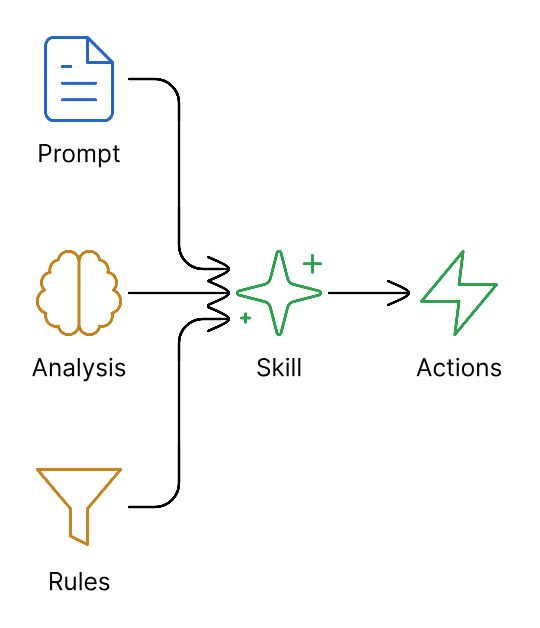
A skill is linked to one or more profiles, which are then assigned to groups. This creates the Detection that appears on the Detections page.
Skill Components
Basic Information
| Field | Description | Example |
|---|---|---|
| Name | Identifier for the skill | "Weapon Detection" |
| Description | What this skill does | "Detects visible weapons and alerts security" |
| Category | Organization tag | "Security", "Safety", "Operations" |
| Version | Skill version | "1.0" |
Analysis Configuration
The analysis configuration contains the AI instructions:
Prompts
| Prompt Type | Purpose | When Used |
|---|---|---|
| Pre-filter System Prompt | Context for quick screening | Every trigger (if pre-filter enabled) |
| Pre-filter User Prompt | Specific screening question | Every trigger (if pre-filter enabled) |
| Full Analysis System Prompt | Context for detailed analysis | After passing pre-filter |
| Full Analysis User Prompt | Detailed analysis instructions | After passing pre-filter |
Example System Prompt:
You are a security analyst reviewing camera footage. Your role is to
identify potential security threats and provide concise, actionable
assessments. Focus on immediate risks and clear descriptions.
Example User Prompt:
Analyze this image from a warehouse entrance camera. Identify:
1. Any persons present and their apparent activities
2. Any objects that could be weapons
3. Any signs of forced entry or tampering
4. The overall threat level (none, low, medium, high, critical)

Provide a brief summary suitable for a security operator.
Objects
Objects are items the AI should detect. Each detected object generates an ONVIF event that your VMS can receive.
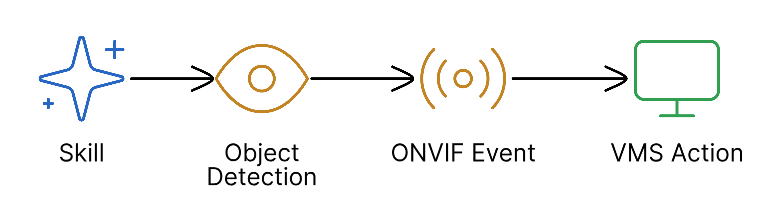
Object Configuration
| Setting | Description | Use Case |
|---|---|---|
| Name | Object identifier | "Person", "Weapon", "Vehicle" |
| Enabled | Whether to detect this object | Active detection |
| Stateful | Maintains true/false state | VMS "is true" conditions |
| Draw Bounding Box | Highlight in captured frames | Visual verification |
Stateful vs Pulse Events
| Mode | Behavior | VMS Use |
|---|---|---|
| Stateful | True when present, False when cleared | Alarms that auto-clear |
| Pulse | Single event per detection | Logging, recording triggers |
Most VMS systems (Milestone, Genetec, ACS) work best with Stateful objects. This allows rules like "When person IS TRUE, start recording" with automatic stop when the person leaves.
Rapid Analysis (Advanced)
For time-critical detections, enable Rapid Analysis on specific objects:
| Setting | Description |
|---|---|
| Rapid Eligible | Can skip full analysis if detected |
| Trigger Deep Analysis | Always run full analysis when detected |
Use Rapid Eligible for obvious threats (weapons) that need immediate response.
Questions
Questions generate structured data outputs beyond simple object detection.
Question Types
| Type | Output | Example Question |
|---|---|---|
| Boolean (bool) | true/false | "Is the person authorized?" |
| Integer (int) | Number | "How many people are present?" |
| String | Free text | "What is the person wearing?" |
| Set | Multiple choice | "What activity is occurring?" |
| Varchar(500) | Long text | "Describe the scene in detail" |
Question Configuration
{
  "id": 1,
  "name": "is_authorized",
  "text": "Is this person likely an authorized employee?",
  "type": "bool",
  "enabled": true,
  "stateful": true,
  "talkdownEnabled": true,
  "talkdownRule": {
    "operator": "equals",
    "value": false
  },
  "talkdownGuidance": "Warn about restricted area"
}
| Field | Description |
|---|---|
| id | Unique question ID |
| name | Machine-readable name (for API/webhooks) |
| text | Question the AI answers |
| type | Answer format |
| enabled | Whether question is active |
| stateful | Generates ONVIF events for boolean answers |
| talkdownEnabled | Can trigger voice response |
| talkdownRule | Condition for voice response |
| talkdownGuidance | Instructions for AI voice message |
TTS Configuration for Questions
When a question's answer matches the talkdown rule, the camera can speak:
| Setting | Description | Example |
|---|---|---|
| Operator | Comparison type | "equals", "notEquals", "greaterThan" |
| Value | Trigger value | false, 5, "red" |
| Guidance | Voice response guidance | "Warn about restricted access" |
| Style | Voice tone | "[authoritative, urgent]" |
| Priority | Execution order | 1 (highest) to 10 (lowest) |
TTS (Text-to-Speech) Configuration
Configure how the camera speaks when conditions are met:
| Setting | Description | Options |
|---|---|---|
| Model | TTS model | "gemini-2.5-flash-lite-preview-tts" |
| Voice | Voice selection | "Kore", "Charon", "Aoede", etc. |
| Style Prompt | Voice personality | "[calm, professional]" or "[urgent, authoritative]" |
Example Voice Styles:
[calm, professional]- Standard announcements[urgent, authoritative]- Security warnings[friendly, welcoming]- Greeting visitors[firm, warning]- Deterrence messages
Skills User Interface
Skills are displayed in a table interface with an expandable editor.
Table View
The Skills page shows all skills in a sortable table:
| Column | Description |
|---|---|
| Name | Skill name (click row to expand) |
| Description | Brief skill purpose |
| Objects | Count of configured objects |
| Questions | Count of configured questions |
| Category | Organizational category |
Skill Editor
Click any skill row to open the full editor with tabs:
- Prompts - System and user prompts for pre-filter and full analysis
- Objects - Detection objects with ONVIF event settings
- Questions - Structured data questions with types
- TTS - Voice configuration and talkdown rules
Navigation
- From Skills Page: Click a skill to open the editor
- From Detections Page: Click the skill name in any detection row
- Breadcrumb: Use AI Configuration > Detections > Skills to navigate
A single skill can be used by multiple profiles across different groups. Changes to a skill automatically update all detections that use it.
Creating a Skill
Step 1: Define the Purpose
Before configuring, answer:
- What problem am I solving?
- What objects need detection?
- What structured data do I need?
- Should there be voice responses?
Step 2: Write Effective Prompts
Good prompts are:
- Specific about what to look for
- Clear about the context (location, time, expected activity)
- Focused on actionable outputs
Example - Loading Dock Security:
System: You are monitoring a warehouse loading dock. Normal activity
includes employees and delivery drivers with badges. The dock operates
7am-6pm on weekdays.

User: Analyze this image and:
1. Identify all persons and whether they appear to be employees (badges,
   uniforms) or visitors
2. Check for any unattended packages or suspicious objects
3. Verify dock doors are in expected state
4. Rate the security status: normal, attention needed, or alert
Step 3: Configure Objects
Add objects that should trigger ONVIF events:
- Click + Add Object
- Enter the object name (e.g., "Person", "Unattended Package")
- Enable Stateful for VMS integration
- Enable Draw Bounding Box for visual verification
Step 4: Add Questions (Optional)
For structured data needs:
- Click + Add Question
- Enter the question text
- Select the appropriate type
- Configure TTS if needed
Step 5: Test and Iterate
- Assign the skill to a profile
- Generate test triggers
- Review sessions for accuracy
- Adjust prompts based on results
Skill Best Practices
Keep Skills Focused
| Approach | Recommended | Avoid |
|---|---|---|
| Scope | One clear purpose per skill | "Detect everything" |
| Objects | 3-5 relevant objects | 20+ unrelated objects |
| Questions | Actionable information | Unnecessary detail |
Avoid "kitchen sink" skills that try to detect everything. They increase:
- False positives
- Analysis time
- Confusion about what triggered alerts
Separate by Use Case
Create distinct skills for:
- Security threats (weapons, intruders)
- Safety compliance (PPE, hazards)
- Operational monitoring (queue length, occupancy)
Use Pre-filter Wisely
Enable pre-filter when:
- High-traffic areas generate many triggers
- You only care about specific scenarios
- Cost optimization is important
Skip pre-filter when:
- Every trigger is potentially important
- Area has low traffic
- Speed is critical
Version Your Skills
Track changes to skills:
- Use version field ("1.0", "1.1", "2.0")
- Document what changed
- Test before deploying widely
Skill Examples
Example 1: Intrusion Detection
Name: After-Hours Intrusion
Description: Detects unauthorized persons after business hours

Objects:
- Person (stateful)
- Weapon (stateful)

Questions:
- "Is the person wearing employee identification?" (bool)
- "What is the person doing?" (string)

Pre-filter: "Is there a person visible?"
Full Analysis: "Analyze for unauthorized access. No employees should be
present after 6 PM. Identify any persons and assess threat level."

TTS: "[urgent, warning] Attention. This is a restricted area.
Security has been notified. Please exit immediately."
Example 2: PPE Compliance
Name: PPE Compliance Check
Description: Verifies workers are wearing required safety equipment

Objects:
- Hard Hat (stateful)
- Safety Vest (stateful)
- Safety Glasses (stateful)

Questions:
- "Is the person wearing complete PPE?" (bool)
- "What PPE items are missing?" (set: hard hat, vest, glasses, none)

Full Analysis: "Check if all persons are wearing required PPE:
hard hat, safety vest, and safety glasses. List any missing items."

TTS: "[friendly, reminder] Attention. Please ensure you have
your safety equipment before entering the work area."
Example 3: Queue Monitoring
Name: Queue Length Monitor
Description: Monitors checkout queue length for operational alerts

Objects:
- Person (not stateful, for counting only)

Questions:
- "How many people are in the queue?" (int)
- "Is the queue length acceptable?" (bool, threshold: >10 triggers alert)

Full Analysis: "Count the number of people waiting in the checkout queue.
Estimate wait time based on queue length."

No TTS (operational monitoring only)
Related Topics
- Detections Overview - How skills power detections
- Profiles - Link skills to triggers
- Event Flow - Understand the analysis pipeline
- Best Practices - Optimize your skills
- Creating Your First Skill - Step-by-step tutorial