Session Search
Sessions are individual analysis events in Anava. This guide covers how to find, filter, and navigate sessions efficiently.
Understanding Sessions
What is a Session?
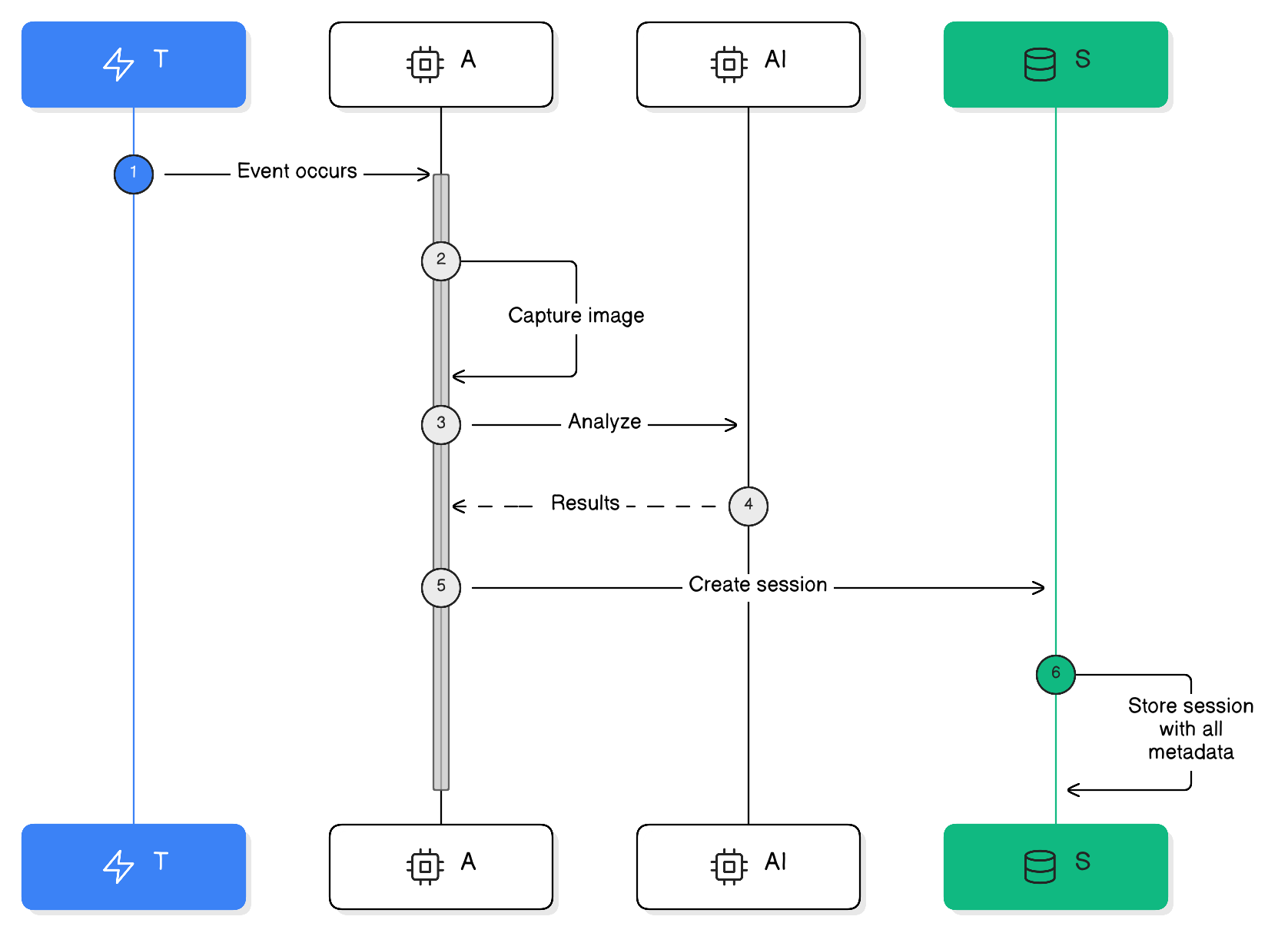
A session is created when:
- Trigger fires (motion, AOAS, I/O, etc.)
- Anava captures and analyzes image(s)
- Results are stored with metadata
Each session includes:
- Captured image(s)
- AI analysis results
- Detected objects and answers
- Timestamps and metadata
- Camera and profile information
Session Lifecycle
Accessing Sessions
Sessions View
Navigate to Sessions in the main navigation.
Default view shows:
- Recent sessions (newest first)
- Thumbnail preview
- Key detection results
- Timestamp and camera
Quick Filters
| Filter | Description |
|---|---|
| All | Every session |
| Detections | Sessions with confirmed objects |
| Alerts | Sessions triggering notifications |
| Flagged | Manually flagged for review |
Search Syntax
Basic Search
Type keywords to search across:
- Camera name
- Object types detected
- Question answers
- Profile name
Example: person lobby
Finds: Sessions with "person" detected in "lobby" cameras
Field-Specific Search
Use field prefixes for precise matching:
| Prefix | Searches | Example |
|---|---|---|
camera: | Camera name | camera:entrance-main |
object: | Detected objects | object:person |
profile: | Profile name | profile:security-alert |
group: | Group name | group:headquarters |
skill: | Skill name | skill:intrusion |
Boolean Operators
Combine terms with operators:
| Operator | Usage | Example |
|---|---|---|
AND | Both terms required | person AND vehicle |
OR | Either term matches | loitering OR intrusion |
NOT | Exclude term | person NOT authorized |
"" | Exact phrase | "no hard hat" |
Date/Time Filters
Filter by time range:
| Syntax | Description |
|---|---|
today | Current day |
yesterday | Previous day |
last7days | Past week |
last30days | Past month |
date:2024-01-15 | Specific date |
date:2024-01-15..2024-01-20 | Date range |
Combined Search Examples
# Security alerts this week
object:person profile:security last7days

# Vehicle events at main gate
camera:gate object:vehicle

# Unauthorized access attempts
"not authorized" NOT "authorized personnel"

# PPE violations yesterday
object:"no hard hat" yesterday

# All loitering alerts
profile:loitering detections:true
Filtering Sessions
Filter Panel
Click Filters to open the filter panel:
┌─────────────────────────────┐
│ Filters                   ✕ │
├─────────────────────────────┤
│ Date Range                  │
│ [Start Date] - [End Date]   │
├─────────────────────────────┤
│ Groups                      │
│ ☑ Security Operations       │
│ ☑ Safety Compliance         │
│ ☐ Retail Analytics          │
├─────────────────────────────┤
│ Cameras                     │
│ [Select cameras...]         │
├─────────────────────────────┤
│ Objects Detected            │
│ ☑ Person                    │
│ ☑ Vehicle                   │
│ ☐ Face                      │
├─────────────────────────────┤
│ [Apply] [Clear]             │
└─────────────────────────────┘
Filter Options
| Filter | Description |
|---|---|
| Date Range | Start and end dates |
| Groups | Limit to specific groups |
| Cameras | Limit to specific cameras |
| Profiles | Limit to specific profiles |
| Objects | Detected object types |
| Confidence | Minimum confidence level |
| Has Alerts | Only sessions with alerts |
| Has TTS | Sessions that triggered speech |
Saving Filters
Save frequently-used filter combinations:
- Set up desired filters
- Click Save Filter
- Name the filter
- Access via Saved Filters dropdown
Session Details
Viewing a Session
Click any session to open details:
┌───────────────────────────────────────────────┐
│ Session: 2024-01-15 14:32:15                  │
├─────────────────────┬─────────────────────────┤
│                     │ Camera: Entrance-Main   │
│   [Image Preview]   │ Profile: After Hours    │
│                     │ Trigger: AOAS Person    │
├─────────────────────┴─────────────────────────┤
│ Detections                                    │
│ ✓ Person (confidence: 95%)                    │
│ ✓ Not authorized (confidence: 88%)            │
├───────────────────────────────────────────────┤
│ Questions                                     │
│ • Authorized access? No                       │
│ • Description: Male, dark jacket, no badge    │
│ • Threat level: Medium                        │
├───────────────────────────────────────────────┤
│ Actions Taken                                 │
│ ✓ ONVIF event emitted                         │
│ ✓ TTS announcement played                     │
│ ✓ Push notification sent                      │
└───────────────────────────────────────────────┘
Session Metadata
Available for each session:
| Field | Description |
|---|---|
| Timestamp | When event occurred |
| Camera | Device that triggered |
| Profile | Profile that handled |
| Skill | Skill used for analysis |
| Trigger | What initiated capture |
| Duration | Analysis processing time |
| Model | AI model used |
| Confidence | Overall confidence score |
Image Controls
| Control | Function |
|---|---|
| Zoom | Enlarge image |
| Pan | Move around zoomed image |
| Bounding Boxes | Show/hide detection boxes |
| Download | Save image locally |
| Full Screen | Maximize image view |
Multi-Frame Sessions
For Active Monitoring sessions:
- Thumbnail strip shows all frames
- Click frame to view
- Timeline shows capture intervals
- Compare first/last frames
Bulk Operations
Selecting Multiple Sessions
| Action | Method |
|---|---|
| Select one | Click checkbox |
| Select range | Shift+click |
| Select multiple | Ctrl/Cmd+click |
| Select all visible | Header checkbox |
Bulk Actions
| Action | Description |
|---|---|
| Export | Download selected sessions |
| Flag | Mark for follow-up |
| Unflag | Remove flag |
| Add Note | Attach comment |
| Share | Generate shareable link |
Exporting Sessions
Export Formats
| Format | Best For |
|---|---|
| CSV | Data analysis in spreadsheets |
| JSON | Integration with other systems |
| Reports and documentation | |
| ZIP | Images with metadata |
Export Contents
Choose what to include:
- Session metadata
- AI analysis results
- Detection details
- Question answers
- Images (original quality)
- Images (compressed)
Scheduled Exports
Configure automatic exports:
- Go to Settings → Exports
- Click New Scheduled Export
- Configure:
- Filter criteria
- Export format
- Destination (email, storage)
- Schedule (daily, weekly)
Performance Tips
Faster Searches
-
Use specific filters
- Narrow date range first
- Then add other filters
-
Index your searches
- Camera: prefix is faster
- Object: prefix uses indexes
-
Limit results
- Use date filters
- Paginate through results
Dealing with Many Results
| Result Count | Strategy |
|---|---|
| < 100 | Browse normally |
| 100-1000 | Add more filters |
| 1000+ | Use date ranges, export for analysis |
Keyboard Shortcuts
| Shortcut | Action |
|---|---|
/ | Focus search |
Esc | Clear search |
J | Next session |
K | Previous session |
Enter | Open session |
F | Flag session |
E | Export selected |
Related Topics
- Reviewing Events - Event review workflow
- Dashboard Guide - Analytics overview
- Event Flow - How sessions are created