Genetec Security Center Integration
This guide explains how to configure Genetec Security Center to receive and respond to Anava detection events.
Prerequisites
- Genetec Security Center 5.11+ installed
- Genetec Security Desk for monitoring
- Cameras added to Security Center with Anava ACAP installed
- Anava skills and profiles configured
Understanding Anava Events in Genetec
Anava emits ONVIF events that Genetec receives as "Camera Events" or "Analytics Events".
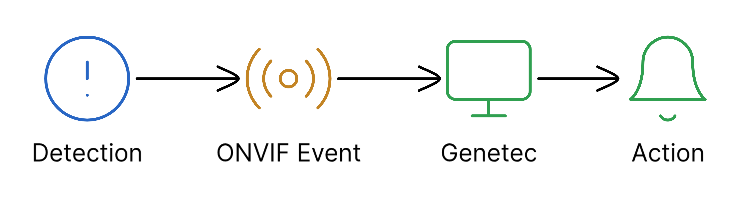
Step 1: Add Camera to Security Center
If not already added:
- Open Config Tool
- Navigate to Video → Video Units
- Click Add Video Unit
- Enter camera IP, credentials
- Complete the wizard
Step 2: Enable ONVIF Analytics
Configure camera to send analytics events:
- In Config Tool, select the camera
- Go to Capabilities tab
- Enable Analytics Events
- Click Refresh capabilities if needed
Step 3: Create Custom Event Types
Define event types for Anava detections:
- Go to System → General Settings → Events
- Click Add Custom Event
- Create events matching your Anava objects:
| Event Name | Entity Type | Description |
|---|---|---|
| Anava - Person Detected | Camera | Person detected by Anava AI |
| Anava - Weapon Detected | Camera | Potential weapon detected |
| Anava - Unauthorized Access | Camera | Unauthorized person detected |
Step 4: Create Event-to-Action Rules
Navigate to Event-to-Action
- In Config Tool, go to System → Tasks → Event-to-Actions
- Or use Security Desk → Event-to-Actions task
Example: Alarm on Person Detection
Create new Event-to-Action:
When:
- Event: Camera analytics event
- Source: [Select camera(s)]
- Event data contains: "Person"
Then:
- Trigger alarm
- Display on Security Desk alarm list
- Start recording (high quality)
Example: Bookmark on Any Detection
When:
- Event: Camera analytics event
- Source: All Anava cameras
Then:
- Add bookmark to recording
- Include event data in bookmark
Example: Integration with Synergis Access Control
When:
- Event: Anava - Unauthorized Access
- Source: Entry cameras
Then:
- Lock associated door
- Trigger high-priority alarm
- Notify security operators
Step 5: Configure Alarms
Create Alarm Configuration
- Go to Alarms → Alarm Monitoring
- Create new alarm configuration
Alarm Properties:
- Priority: High (for weapons), Medium (for persons), Low (for monitoring)
- Auto-acknowledge: Based on policy
- Escalation: Define escalation timeline
Map Events to Alarms
In Event-to-Action:
- Use "Trigger alarm" action
- Select appropriate alarm configuration
- Include context from Anava detection
Step 6: Configure Security Desk Display
Alarm Tiles
- In Security Desk, go to monitoring task
- Add alarm tiles to workspace
- Filter by Anava event types
Camera Pop-up on Alarm
Configure automatic camera display:
- In alarm configuration, set Display entity to camera
- Configure pop-up tile in Security Desk layout
Step 7: Test the Integration
- Generate Anava detection (trigger profile)
- Verify in Security Desk:
- Alarm appears in alarm queue
- Camera displays in monitoring tile
- Recording includes bookmark
- Check Config Tool Event-to-Action logs
Advanced Configuration
Federation
For multi-site deployments:
- Configure event forwarding between directories
- Centralize Anava alarms at headquarters
- Use consistent event naming across sites
Mobile Integration
Anava events on Genetec Mobile:
- Enable push notifications for alarm priorities
- Configure mobile alarm acknowledgment
- Include camera snapshots in notifications
Integration with Mission Control
For operations centers:
- Create dashboard with Anava event statistics
- Add trend charts for detection volumes
- Configure geographic display for alarm locations
Troubleshooting
Events Not Appearing
-
Check camera connection
- Camera should show "Online" in Config Tool
- Verify ONVIF capabilities are enabled
-
Check analytics settings
- Ensure analytics events are enabled on camera
- Refresh capabilities if needed
-
Verify Anava is sending events
- Check Anava Sessions dashboard
- Ensure objects are configured as "stateful"
Event-to-Action Not Triggering
-
Check rule conditions
- Verify event type matching
- Check source camera selection
-
Check rule is enabled
- Disabled rules show greyed out
-
Check action permissions
- User running service must have permission for actions
Alarm Issues
-
Alarms not appearing
- Verify alarm configuration is linked to event-to-action
- Check Security Desk alarm queue filters
-
Too many alarms
- Adjust Anava confidence thresholds
- Add pre-filter to skills
- Use time schedules in event-to-action
Best Practices
Event Naming
- Prefix all Anava events with "Anava -"
- Include detection type in name
- Keep names consistent across sites
Alarm Prioritization
| Detection | Priority | Response |
|---|---|---|
| Weapon | Critical | Immediate |
| Unauthorized access | High | Within 1 minute |
| Person after hours | Medium | Within 5 minutes |
| Monitoring events | Low | Daily review |
Performance
- Limit concurrent high-quality recordings
- Use recording priorities appropriately
- Archive alarm logs regularly